Check whether a DigiLocker PDF is genuine
A DigiLocker issued document is often a signed PDF. The seal may belong to the department that issued the document, or to the signing setup DigiLocker uses for issued files. National e-Governance Division is one signer you may see on an issued file. The seal covers the bytes of that PDF. If those bytes change, the seal fails.
DigiLocker also lets a person upload their own files. An uploaded file was not signed by the issuer just because it sits in a DigiLocker account. The account shows that someone stored a file. The signature, if there is one, shows who sealed that file and whether it still matches.
Download the issued PDF, not a picture of it
In DigiLocker, download the issued document as a PDF. Do not photograph the screen. Do not use the browser's print command to make a new PDF. A print-to-PDF is a fresh file. It can look identical and still have no signature at all.
What to look at in the result
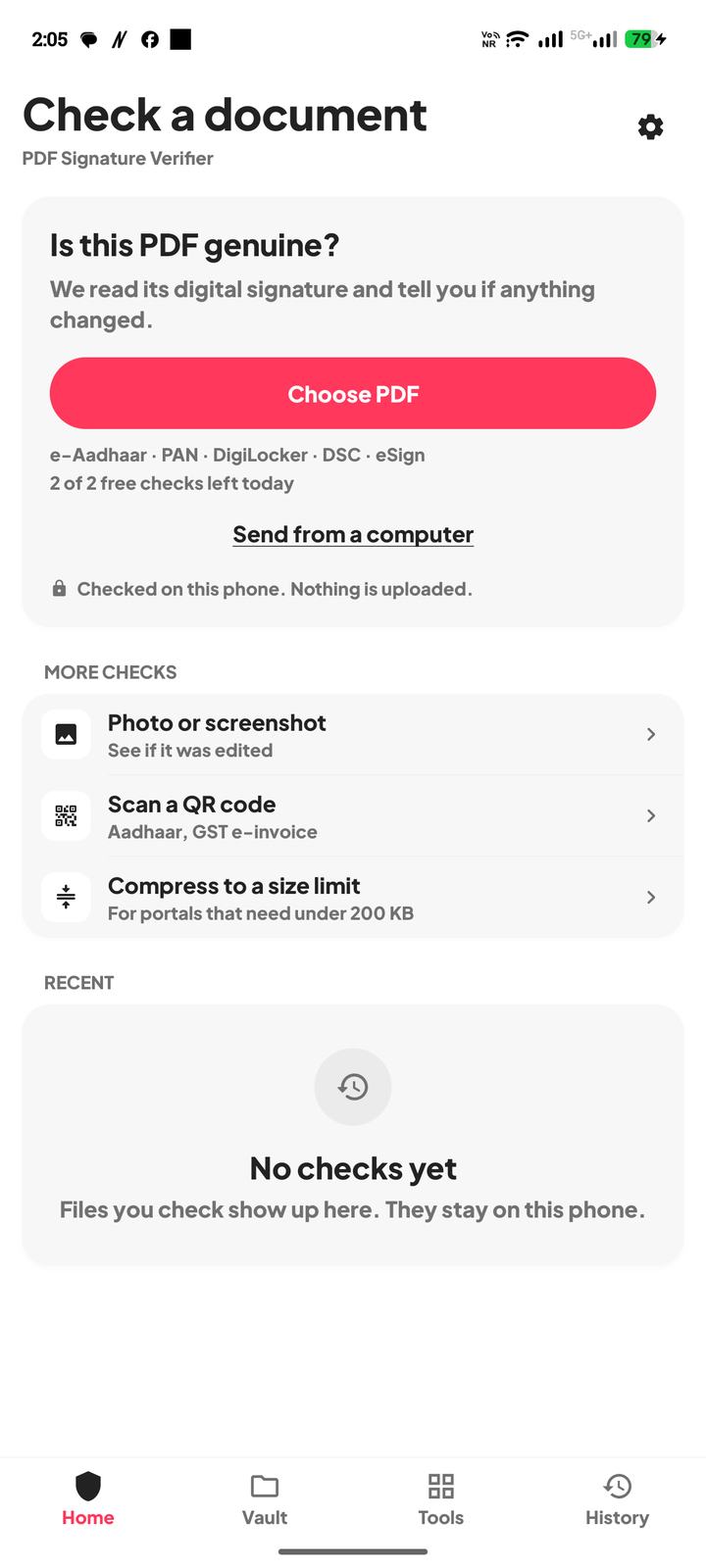
Open the original PDF in PDF Signature Verifier. The check runs on the phone, and the file is not uploaded. Then read both the verdict and the signer name.
- 1Genuine signature, and the signer is the issuer or DigiLocker's signing authority, means the sealed bytes are intact and the certificate chains to a trusted certifying authority.
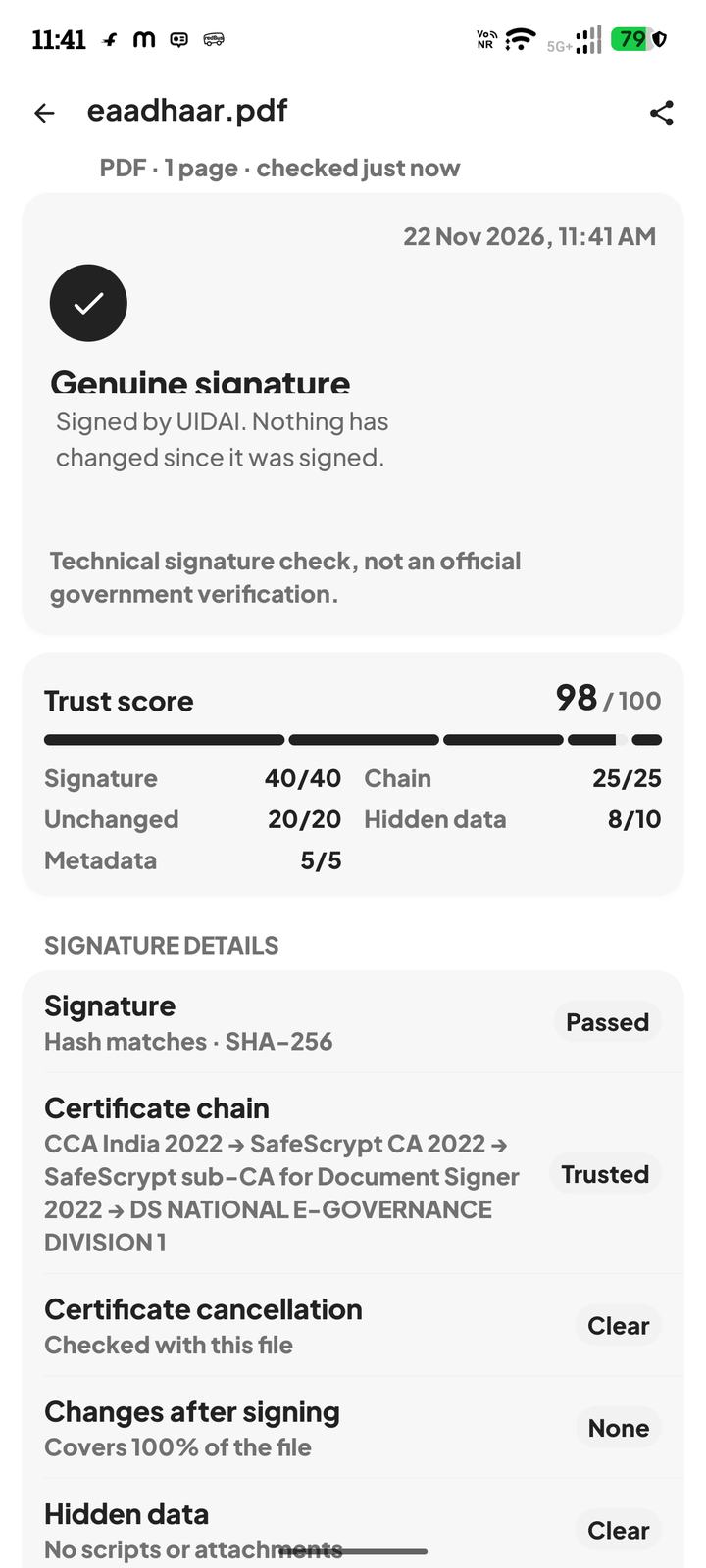
- 2Genuine signature, but the signer is a person or a company you do not expect, is a reason to stop. A valid seal from the wrong party is not the board, the department, or DigiLocker standing behind that file.
- 3Changed after signing means do not rely on this copy. Download the issued PDF again.
- 4No digital signature usually means you saved a preview, a scan, or an uploaded file that nobody sealed.
- 5Signed, but check one thing means the file is unchanged and the seal is intact, but the certificate's issuer was not confirmed. Ask where the file came from before you trust it.
Match the name on the pages to the person in front of you yourself. The app does not know who is holding the phone. A genuine file can be someone else's real document.
Uploaded files and shared copies
Treat an uploaded DigiLocker file as you would treat any other PDF a person sent you. Check whether it has a seal, and read who signed it. Do not treat the DigiLocker screen, or a forwarded download, as a substitute for that check.
Sharing apps sometimes rebuild a document on the way. If a file that was genuine before you sent it comes back unsigned or changed, ask for a fresh download from DigiLocker rather than trying to repair the broken copy.
This is a technical signature check. It is not DigiLocker, and it is not an official government verification of the person or the record.
Questions
Does a file in DigiLocker have to be genuine?
No. Issued documents are signed by the issuer or by DigiLocker's signing setup. Files a person uploaded are just files they stored. Check the PDF you actually have.
I printed the DigiLocker page to PDF. Can I check that?
That new PDF is not the issued file. Download the issued document again and check that download.
The app says genuine, but the signer is not the board. Is that fine?
Read the name. Some issued files are signed by National e-Governance Division or another DigiLocker signing authority. A signer you cannot place is a reason to pause and fetch the file yourself.
Does this confirm the person is who the document says?
No. A genuine signature means the sealed bytes still match. It does not identify the person holding the file, and it is not an official government verification.